

Free AI Room Design Without Login: Preview Your Real Room in Seconds
Try free AI room design without login friction. Upload a photo, claim free credits on sign-up, and preview your actual room redesigned — walls, floors, and furniture stay yours.
You can preview your real room redesigned with AI today — no design software, no credit card, and no waiting on a designer. If you have typed "free AI room design without login" into Google, here is what you are actually looking for: a way to see what your room could become, instantly, without learning a tool or paying for it up front. This guide walks you through exactly how to do it, and the one honest thing you should know before you start.
What "free AI room design without login" really means
When people search for AI room design without login, they are usually not asking about account settings. They are asking for speed and simplicity. They want to upload a photo, get a photorealistic result, and skip the friction — no onboarding video, no 3D floor planner, no sales call.
That is a reasonable expectation, and it is exactly the problem AI Room Design was built to solve. Here is what you actually get when you try it:
- A free credit to start — sign up in under a minute and you get one free credit, enough for a full preview. No credit card required.
- No watermarks on your results — what you preview is yours to keep and share.
- No subscription to find out if you like it — that free preview is a real trial, not a teaser behind a paywall.
- A real photo of your real room — not a staged sample image. You upload your space, you see your space redesigned.
One thing we will not do is pretend there is a hidden "no account at all" mode. Generating an AI preview costs compute, and we would rather be straight with you: claim your free credit at sign-up and your first preview is free. No tricks, no "free until you hit export."
What the AI does with your room
Upload a photo and the AI restyles your actual space. Unlike many room-design apps that redraw your room into a generic showroom, AI Room Design keeps your real room intact:
- Your layout stays the same — walls, windows, doors, and ceiling height do not move.
- Your furniture stays yours — the pieces you already own are the starting point, not a catalog of items you would have to buy.
- Your lighting and proportions are respected, so the result is something that could actually exist in your space.
This is the difference between "a pretty picture" and "a preview of my room." It is also why people use it before committing to paint, furniture, or a contractor — the result is honest to your space.
How to try it: 3 steps
Step 1: Take a good photo
Stand in the doorway and shoot toward the room's main wall. This angle captures the most walls and floor in a single frame. Use natural light — open the curtains and turn off overhead lights. Tidy up obvious clutter, but do not stage the room. Your real room is the point.
Step 2: Upload and tell the AI what you want to change
Upload the photo and describe the direction: "make the walls warm white and the sofa a deep green," or "give this room a Scandinavian feel." The more specific you are about what should change, the more useful the preview.
Step 3: Preview, compare, decide
The AI returns a photorealistic preview in seconds — and your free credit covers it. Want to compare a different wall color or style? You can run another preview any time you are ready. For a first look, one free preview tells you quickly whether the tool is worth your time.
A real before-and-after room design example
Here is a real basement living room preview. The homeowner wanted to make the extra floor space feel less empty while keeping the existing furniture and the white mosaic area in view.
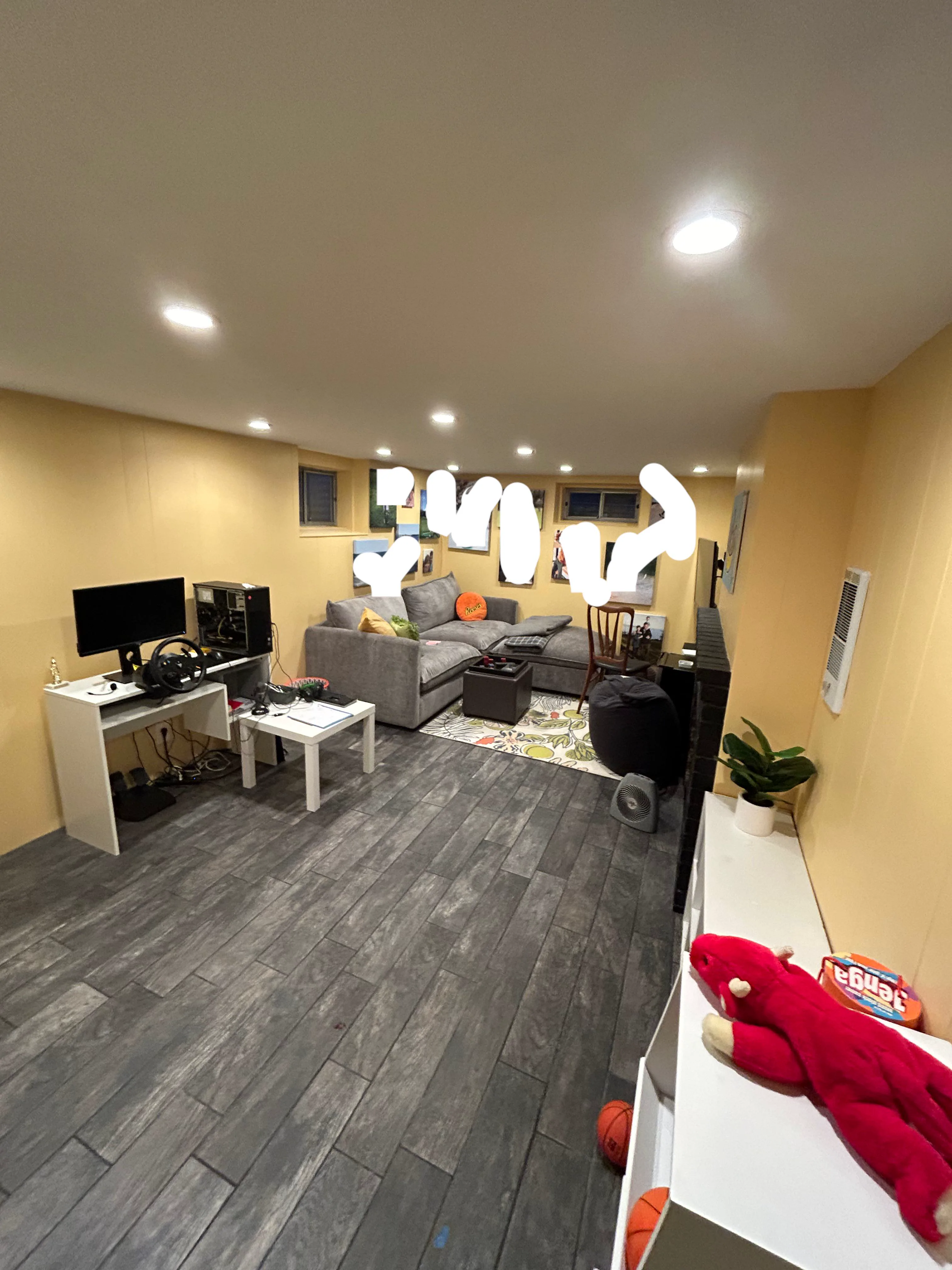
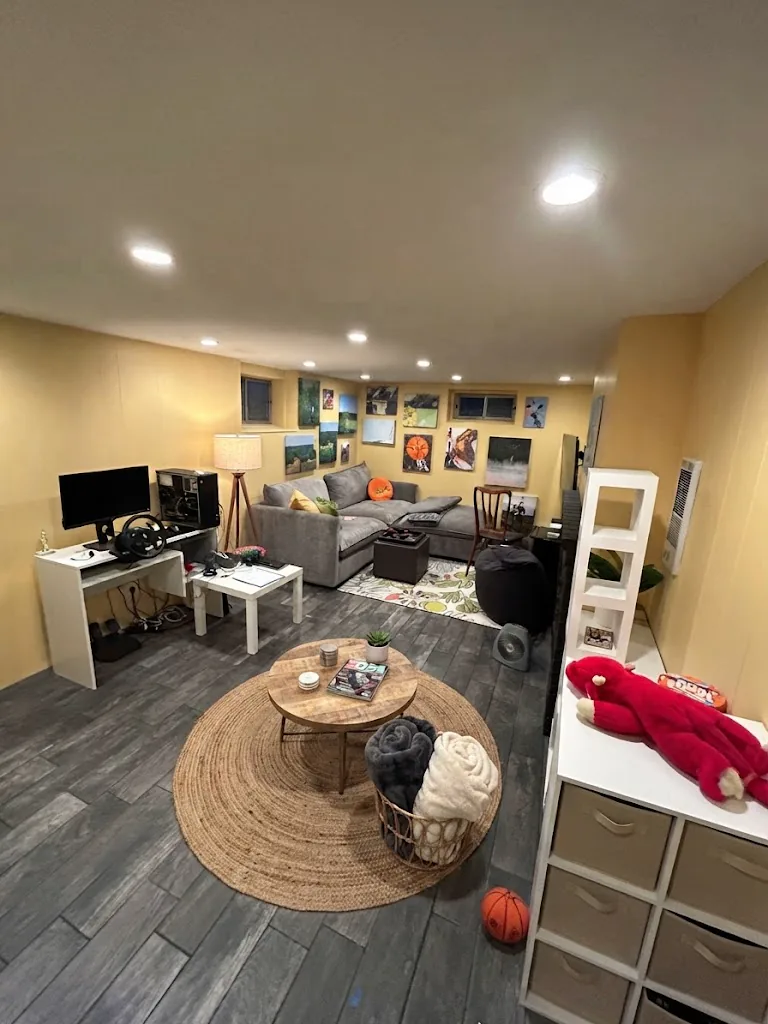
The prompt was: "How should I use the extra space? Help me furnish it so the room feels less empty, while keeping the white mosaic."
The preview added a round coffee table, a rug, a floor lamp, a storage shelf, and a basket for throws. The original sofa, desk, television, and room layout stayed in place, so the result still reads as the homeowner's room rather than a generic showroom.
What you can actually do with a free preview
Choose a paint color. Upload your living room and see it in three different wall colors before you buy a single can. This alone saves the classic "painted it, hated it, repainted it" cycle.
Swap the sofa. See whether a different sofa color or style changes the whole room — without moving anything heavy or ordering anything.
Check a layout change. Move furniture around in your mind (or in the AI's output) before you push a single piece across the room.
Show a contractor or your partner. A concrete image communicates more than "I want it more modern." Show exactly what you mean, get a better quote, end the design debate with a picture instead of an argument.
Plan a shopping trip. Your preview shows the palette, proportions, and textures to look for when you browse furniture stores — a reference list you did not pay a designer to make.
The honest bit: other tools vs. this one
Most free AI room tools will happily redraw your space — including adding windows, doors, and walls you do not have. The result looks great until you realize it is not your room anymore, and you cannot act on it.
AI Room Design is built the other way: it keeps your real room intact and changes only what you ask to change. That is the difference between a concept image and a decision tool. And because your photo is used to render your preview and nothing else, you stay in control of your space from start to finish.
3 tips for the best free result
- Use your one best angle. You get one free preview — do not spend it on a dim, cluttered shot. Take three or four photos, pick the one that shows the most room.
- Make the free preview count. Spend your free credit on the room you most want to change and the style you are most curious about. If you want to compare a few directions, you can run more previews whenever you need them.
- Save what you like, even if it is not perfect. A color you respond to or a layout that works is a data point for your project, not a failed render.
Frequently asked questions
Is AI room design free without login actually free?
Yes. AI Room Design gives you one free credit at sign-up — no credit card required, and no watermarks on your results. That free preview uses the same AI model as paid previews; the only limit is how many previews you can run.
Do I need a credit card to try it?
No. Claim your free credit at sign-up and start previewing immediately. You only add a payment method if you decide you want more credits later.
Will the AI keep my real furniture and layout?
Yes — that is the core of the product. The AI keeps your walls, windows, doors, and existing furniture, and changes only what you ask it to change. You get a preview of your actual room, not a generic showroom render.
Can I change just the wall color?
Yes. Describe the change you want — "just the wall color" — and the AI will keep the rest of the room intact while showing you new color options.
What rooms can I preview?
Living rooms, bedrooms, kitchens, home offices, and more. The same photo-first flow works for any space you can photograph.
What happens to my photo?
Your photo is used to render your preview and is not repurposed. You stay in control of your space.
Start with your real room
You do not need a designer, a 3D tool, or a credit card to see what your room could become. Upload a photo, claim your free credit, and preview your real room redesigned — keep the layout, keep the furniture, keep it honest.
Looking for more? Start with how to visualize furniture in your room and our guide to redesigning a room around furniture you already own.